
System Health
Your POS server's status at a glance — version, license, terminals, and background job health.
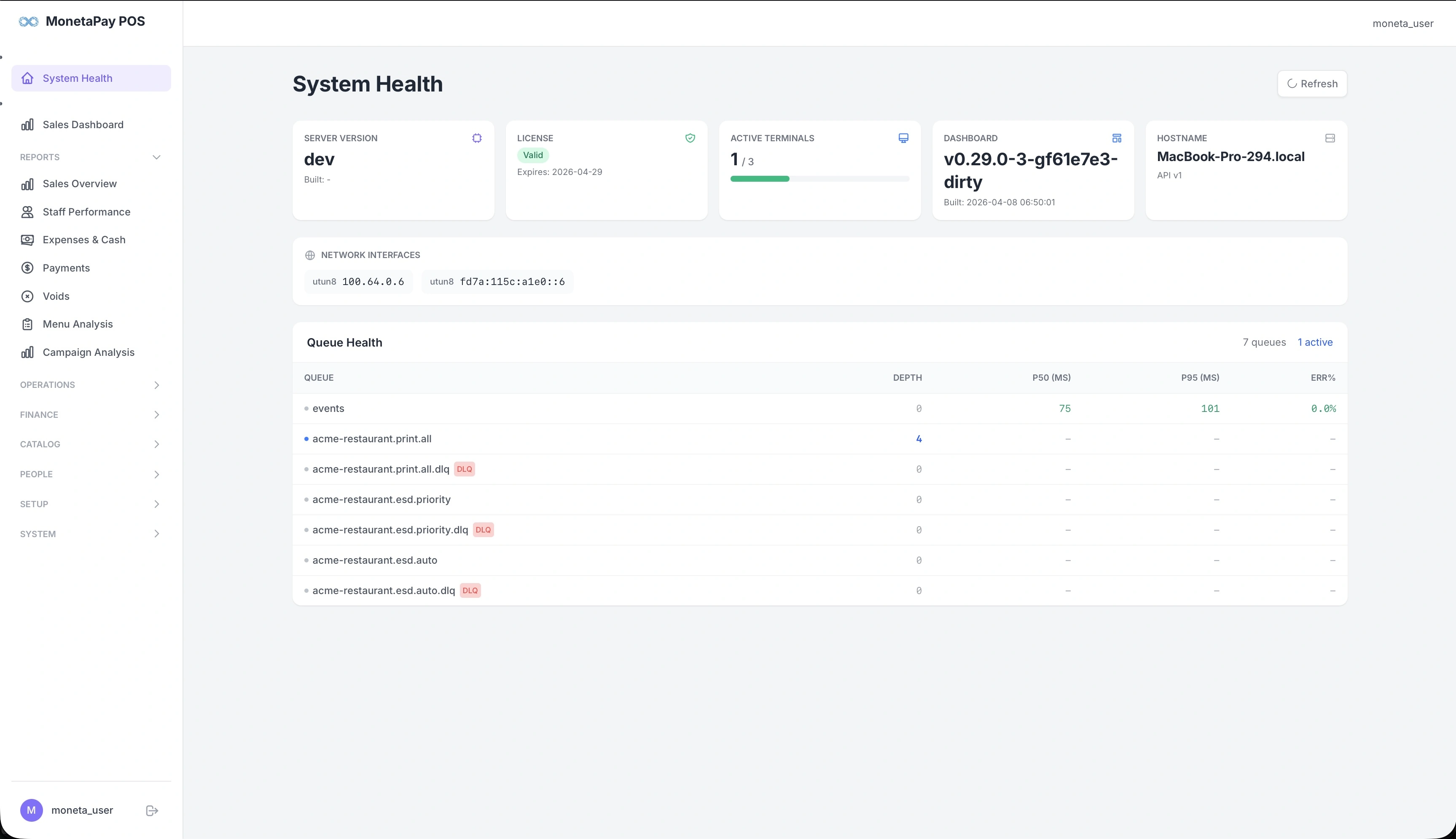
Overview
System Health is the first page you see when you open the dashboard. It tells you whether your POS server is running correctly, your license is valid, and background jobs (printing, fiscal submissions) are processing normally.
Check this page when:
- You first log in, to confirm everything is operational
- After a software update, to verify the new version is running
- If printing or fiscal receipts seem delayed — the Queue Health table will show the backlog
- To check how many terminals are active vs your license limit
What You'll See
Status Cards
Five cards across the top give you an instant snapshot:
| Card | What It Shows |
|---|---|
| Server Version | The POS server version and when it was built. After an update, confirm this matches the version you installed. |
| License | Your license status — Valid (green), Grace (amber, expiring soon), or Locked (red, expired). Shows the expiry date. |
| Active Terminals | How many POS terminals are currently connected out of your licensed maximum (e.g., 1 / 3). The progress bar turns amber above 70% and red above 90%. |
| Dashboard | The dashboard version and build date. |
| Hostname | The server's machine name and API version. Useful when managing multiple branches. |
TIP
If the License card shows Grace, your license has expired but you are still within the grace period. Renew promptly from the Moneta Pay Portal to avoid service interruption.
Network Interfaces
Below the status cards, you'll see the server's network addresses. This is helpful when:
- Setting up POS terminals that need to connect to the server
- Troubleshooting network connectivity between terminals and the server
- Verifying VPN connectivity (you'll see the VPN address listed here)
Queue Health
The bottom section shows background job queues and their processing status. These queues handle tasks like receipt printing and fiscal submissions that happen automatically after each order.
| Column | What It Means |
|---|---|
| Queue | The job queue name. Print queues handle receipt printing; ESD queues handle fiscal/tax submissions. |
| Depth | Number of jobs waiting to be processed. Should normally be 0 or low. |
| p50 (ms) | Typical processing time (median). |
| p95 (ms) | Slowest 5% of processing times. High values may indicate a slow printer or network issue. |
| Err% | Percentage of jobs that failed. Any value above 0% warrants investigation. |
Queues marked with a red DLQ badge are dead-letter queues — they hold jobs that failed repeatedly. See Queue Monitor for how to inspect and replay failed jobs.
What to look for:
- Depth climbing — jobs are arriving faster than they're being processed. Check that the printer is online or that the fiscal service is reachable.
- High p95 — a slow printer or unreliable network connection.
- Err% above 0 — something is failing. Check DLQ queues for details.
- DLQ with messages — failed jobs need attention. They can often be replayed once the underlying issue is fixed.
Refresh
Click the Refresh button in the top-right corner to reload all status data. The page does not auto-refresh, so click Refresh to get the latest state.