
Payments
Track how customers pay — cash, M-PESA, or credit — and reconcile mobile money transactions.
Overview
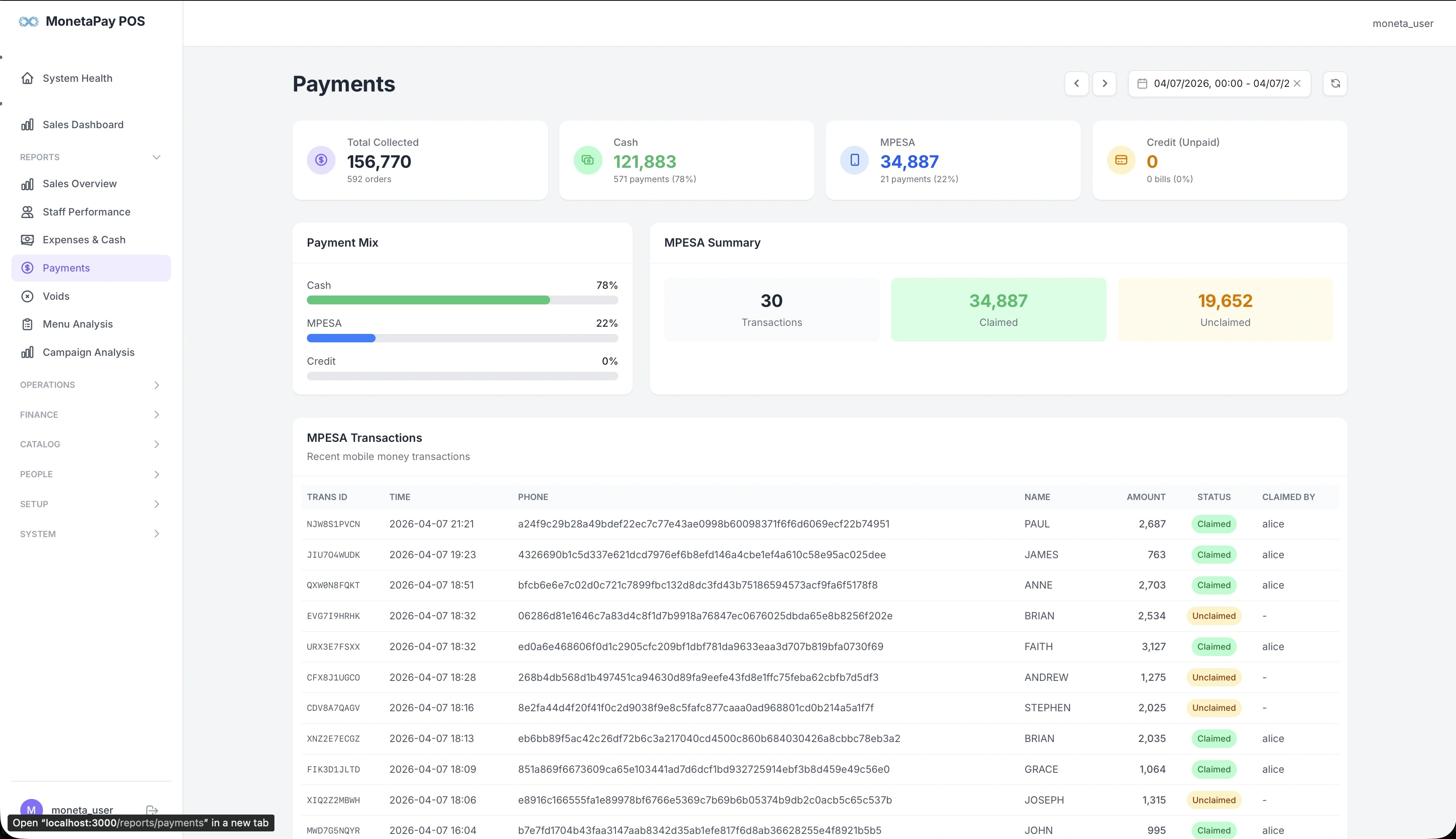
The Payments page shows you the breakdown of how revenue was collected. It's essential for end-of-day reconciliation, especially when you need to match M-PESA transactions to orders.
Use this page to:
- See the cash vs M-PESA vs credit split
- Reconcile M-PESA transactions against your till number
- Identify unclaimed M-PESA payments that need manual matching
- Track credit (unpaid) bills
TIP
This page is available to Admin users only.
What You'll See
Summary Cards
| Card | What It Shows |
|---|---|
| Total Collected | All revenue with order count |
| Cash | Cash payments with count and percentage of total |
| MPESA | Mobile money with count and percentage |
| Credit (Unpaid) | Outstanding unpaid bills with count and percentage |
Payment Mix
A horizontal bar chart showing the percentage split between cash, M-PESA, and credit. This gives you an instant visual of customer payment preferences and helps plan cash management.
MPESA Summary
Three highlighted stat boxes:
| Box | Description |
|---|---|
| Transactions | Total M-PESA payment count for the period |
| Claimed | Payments that have been matched to orders (green) |
| Unclaimed | Payments received but not yet matched to an order (orange) |
Unclaimed payments need attention — they represent money received via M-PESA that hasn't been linked to a specific order. This can happen when a customer pays before the order is entered, or when the phone number doesn't auto-match.
MPESA Transactions
A detailed log of every M-PESA payment:
| Column | Description |
|---|---|
| Trans ID | M-PESA transaction reference |
| Time | When the payment was received |
| Phone | Customer's phone number |
| Name | Customer name from M-PESA |
| Amount | Payment amount |
| Status | Claimed (green) or Unclaimed (orange) |
| Claimed By | Which staff member matched the payment to an order |
Use this table for daily reconciliation — compare against your M-PESA statement to ensure all transactions are accounted for.