
Printers
Configure thermal printers for receipts and kitchen tickets.
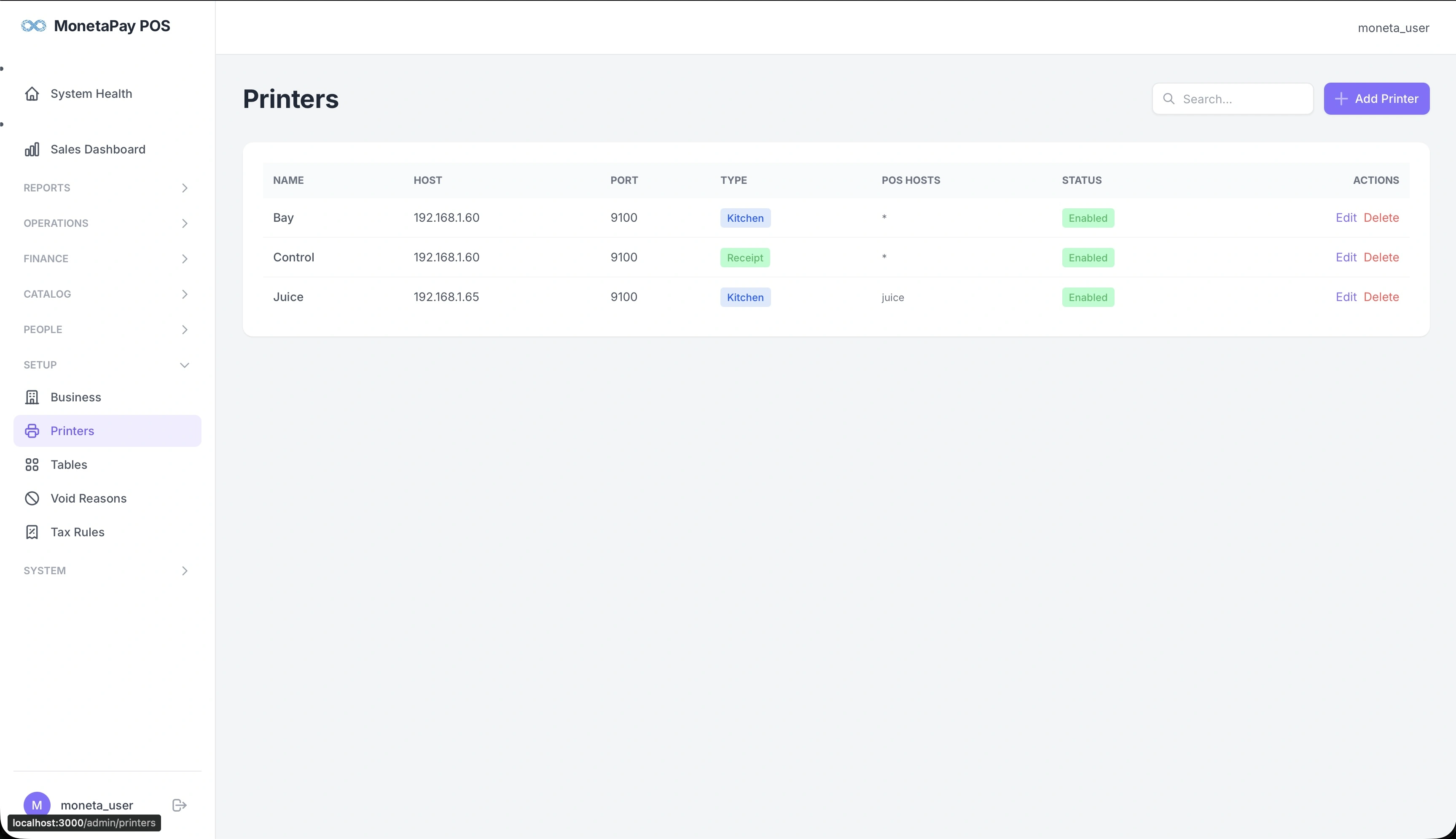
Overview
The Printers page manages your thermal printer connections. Moneta Pay POS communicates with ESC/POS compatible thermal printers over your local network (TCP/IP). You can have separate printers for customer receipts and kitchen tickets.
Use this page to:
- Add new printers
- Configure printer IP addresses and ports
- Set printer types (Receipt vs Kitchen)
- Assign printers to specific POS terminals
- Enable or disable printers
What You'll See
Printers Table
| Column | Description |
|---|---|
| Name | Printer display name (e.g., "Bay", "Control", "Juice") |
| Host | IP address on your local network (e.g., 192.168.1.60) |
| Port | TCP port (typically 9100) |
| Type | Kitchen (blue) or Receipt (purple) |
| POS Hosts | Which POS terminals use this printer (* = all) |
| Status | Enabled (green) or Disabled |
| Actions | Edit or Delete |
Adding a Printer
Click + Add Printer and provide:
- Name — a descriptive name for the printer
- Host — the printer's IP address on your network
- Port — TCP port (default 9100)
- Type — Receipt (for customer bills) or Kitchen (for kitchen tickets)
- POS Hosts — which terminals should send jobs to this printer (leave as * for all)
TIP
Kitchen printers receive order tickets when orders are placed. Receipt printers print customer bills when orders are paid. A single printer can serve as both, but busy restaurants benefit from separate printers for each station.
Troubleshooting
If a printer isn't working:
- Verify the IP address is correct and the printer is powered on
- Check that the printer is on the same network as the POS server
- Test connectivity: try pinging the printer's IP address
- Check the Queue Monitor for print jobs stuck in the queue
- See Printer Problems for more detailed troubleshooting